Create online items
You create online items from local items with the com|CONNECT Online Item Creation Wizard.
Start the wizard
Items > Items
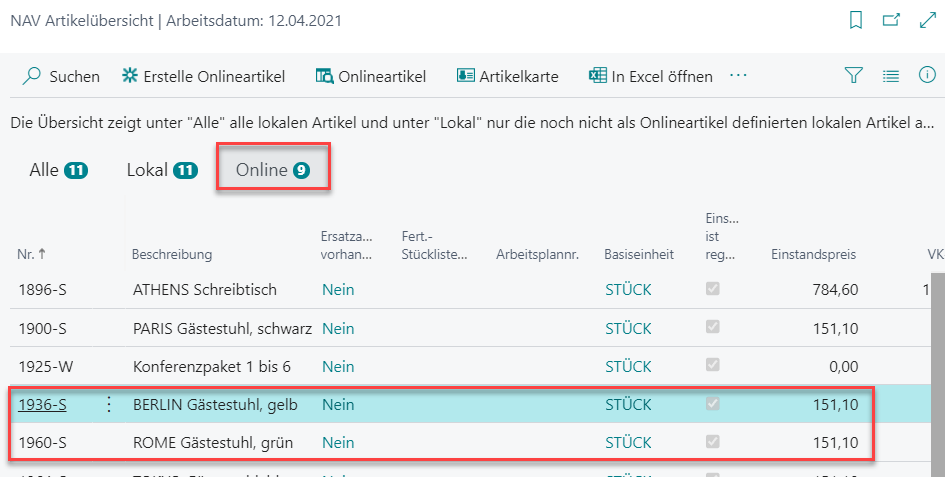
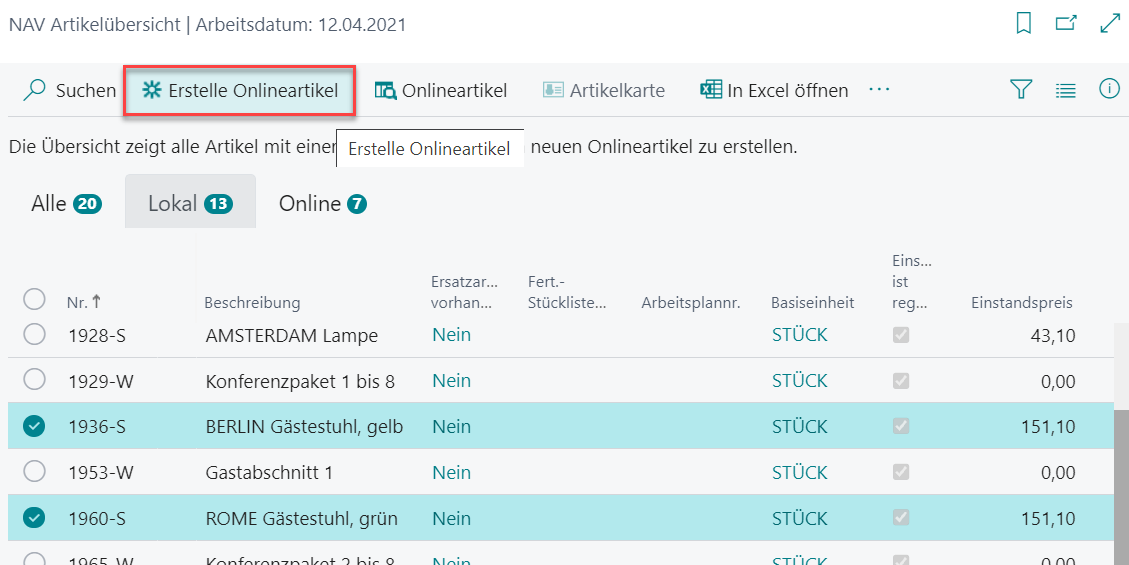
- In the NAV Item List, select one or more local items.
- Choose the Create Online Items action. The com|CONNECT Online Item Creation Wizard opens.
- Use the Create as configurable online item toggle to decide which type of online item to create. For variant items, the toggle must be turned on.
Create simple online items
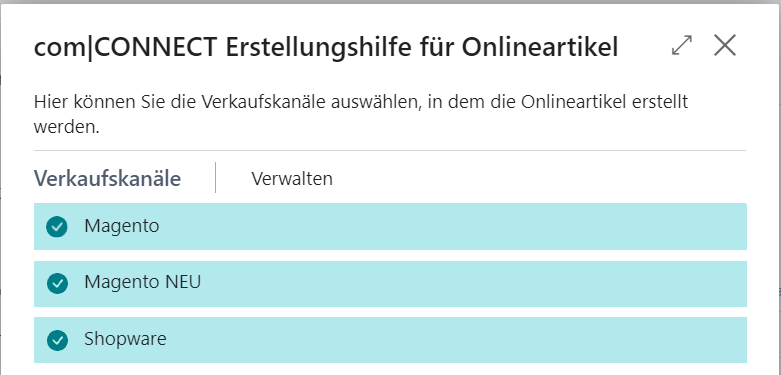
Select the sales channel or sales channels to create the items for, and then choose Next.
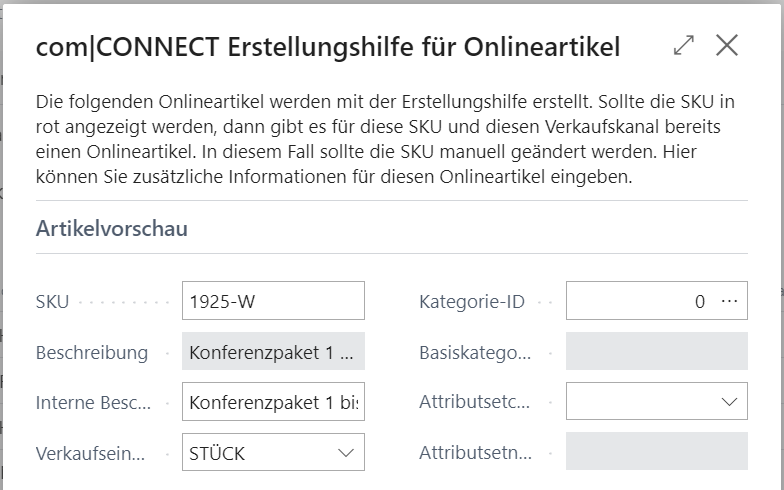
On the next page, define the details of the online item. If you selected several local items, the wizard shows a list that you can edit directly.
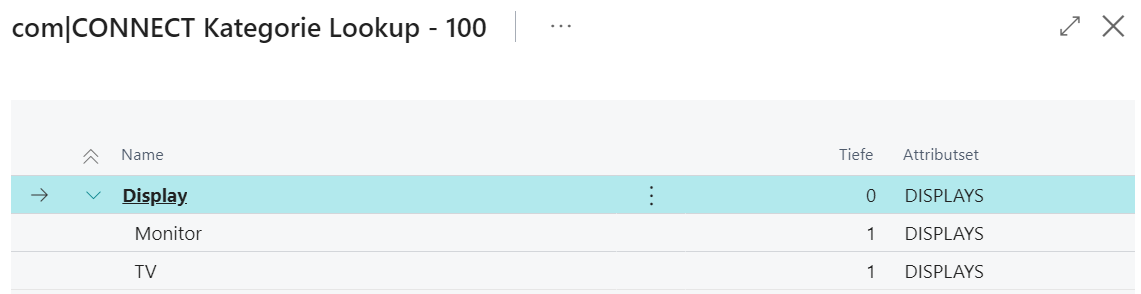
Assign the category in the Category ID field.
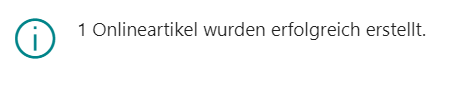
Choose Finish. A message confirms the number of online items created.
Create configurable online items
In the following example, a configurable online item is created from the two local items BERLIN guest chair, yellow and ROME guest chair, green. The Local filter was set in the NAV Item List beforehand to avoid selecting items that already have online items.
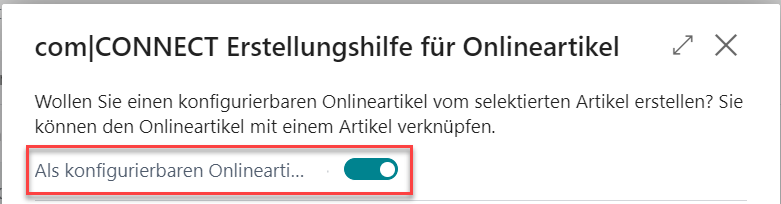
Turn on Create as configurable online item.
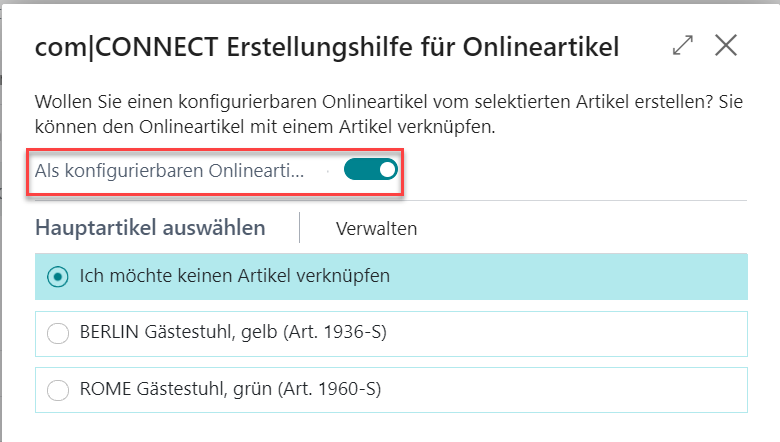
Under Select Main Item, optionally select one of the previously selected local items as the main item that all other items are assigned to. This is useful, for example, if a general local item Guest chairs exists and was selected too. All other items then form the basis for the variants under the main item through their categories and attributes.
If you don't select a main item (I don't want to link an item), all local items are placed under the new configurable online item. Choose Next.
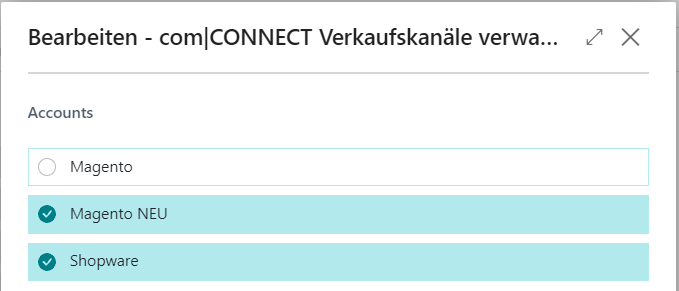
Select the sales channel or sales channels to create the items for, and then choose Next.
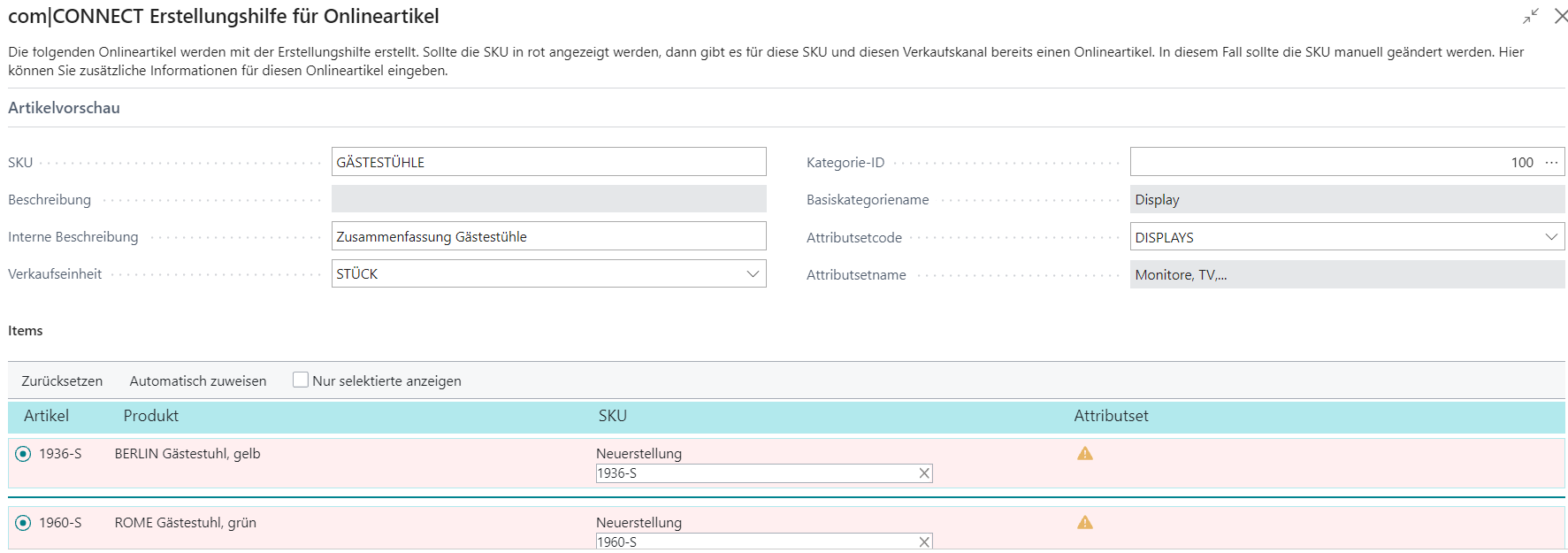
In the item preview, check and complete the data of the online item and its variants.
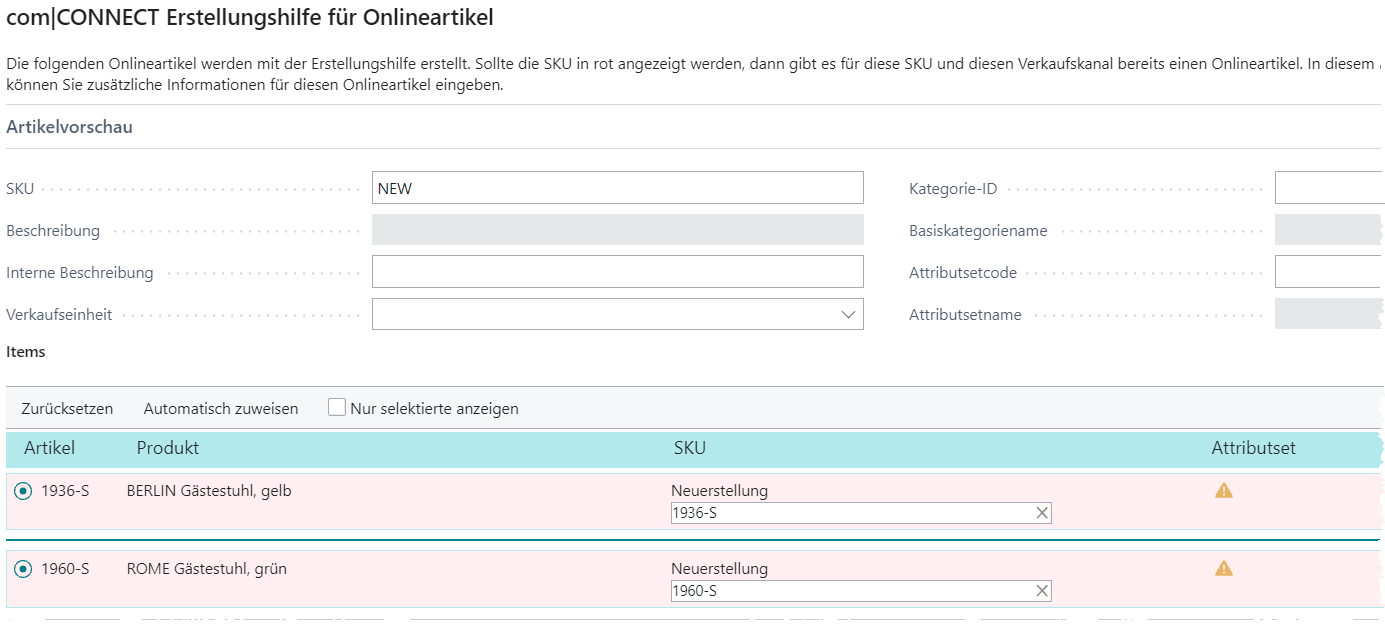
If the SKU is shown in red with the SKU status New creation, the local item was already created as an online item before. The wizard indicates this with an additional line with the SKU status Linked and creates a copy that you can adjust for the new configurable online item.
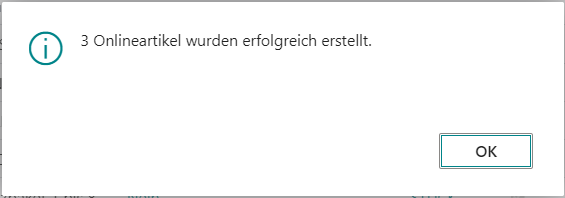
Choose Finish and close the confirmation with OK.
Result: The two selected guest chairs are listed under Online in the NAV Item List.