Link shop categories and shop attributes
Before an online item can be transferred to a shop, its com|CONNECT category and com|CONNECT attributes must be linked to the categories and attributes of that shop. You link them separately for each shop.
Items > Online Items
Step 1: Open the online item
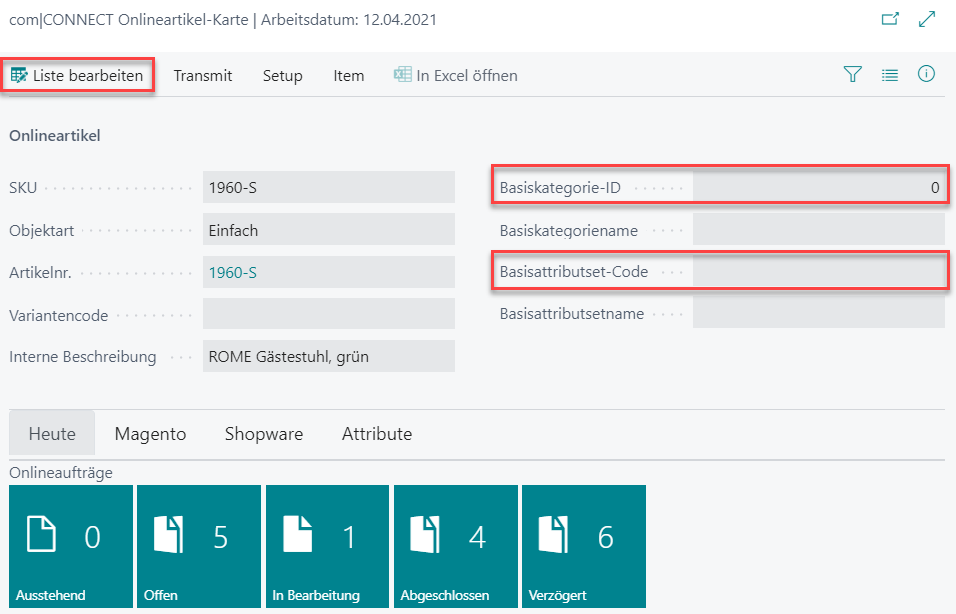
- Selecting the SKU opens the com|CONNECT Online Item Card.
- The card opens in view mode. Edit List turns on edit mode.
Step 2: Select the basic attribute set and basic category
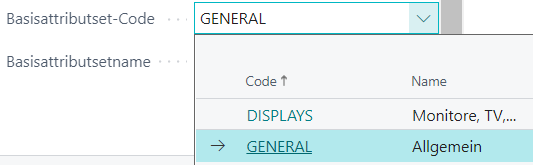
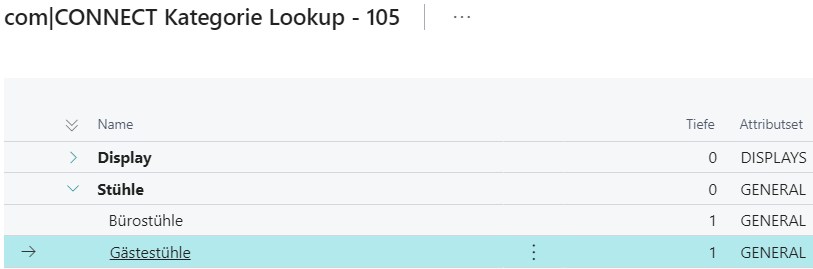
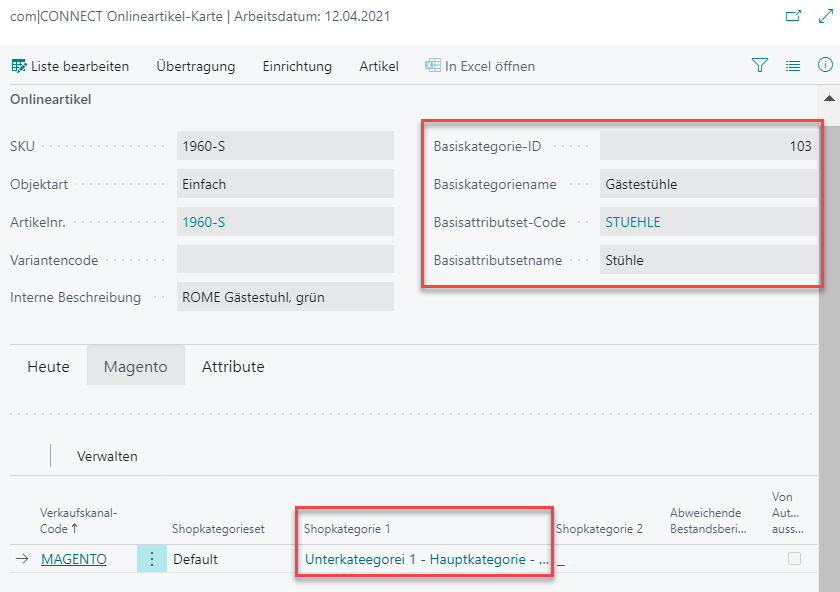
Select the com|CONNECT category and the com|CONNECT attribute set in the Basic Category ID and Basic Attribute Set Code fields.
Note
The basic category isn't mandatory. However, if you only select a basic attribute set, the available attributes aren't prefiltered based on the links of related items in the same basic category. The automatic attribute linking also works without prefiltering in that case.
Step 3: Link the online item category to the shop category
Selecting a shop category also loads the shop attributes that you need later to link the online item attributes. com|CONNECT lets you link up to two shop categories (for example Chairs and Special offers).
Select the tab of the shop and open the Shop Category 1 field.
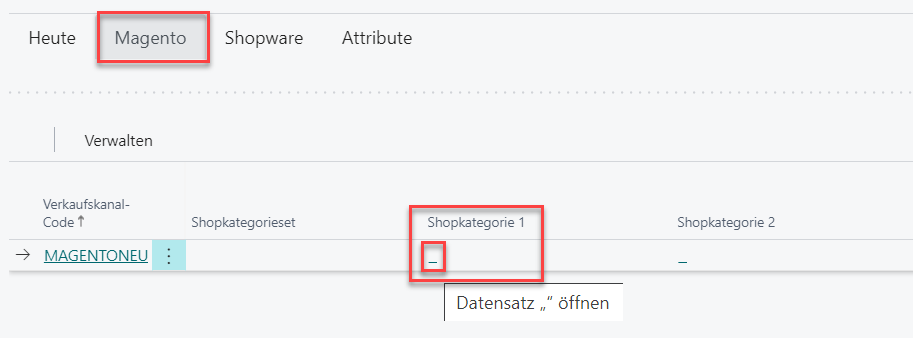
The com|CONNECT Category Selection page opens. Because a shop can contain hundreds of categories, results are only shown after you enter a search term. Matches with the search term are highlighted in the result.

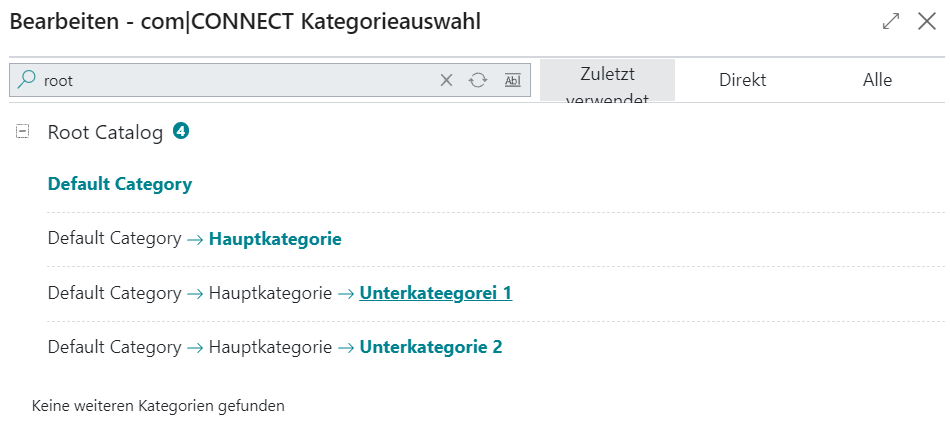
If needed, narrow down the result with the filters:
- Recently used: Lists the most recently used categories without filtering.
- Direct: Applies the search term to the last category level only.
- All: Applies the search term to all category levels.
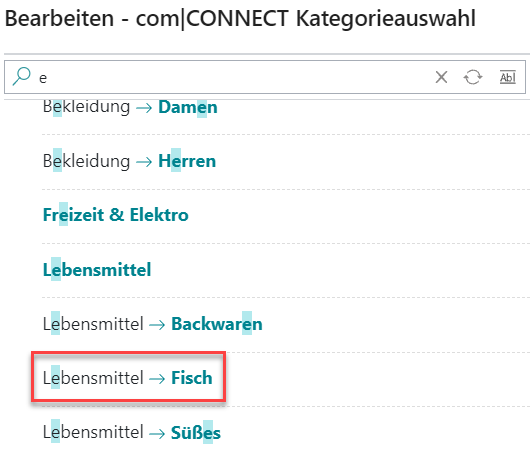
Example All: Searching for e searches all category levels. The subcategory Fisch is shown because its parent category Lebensmittel contains an e.
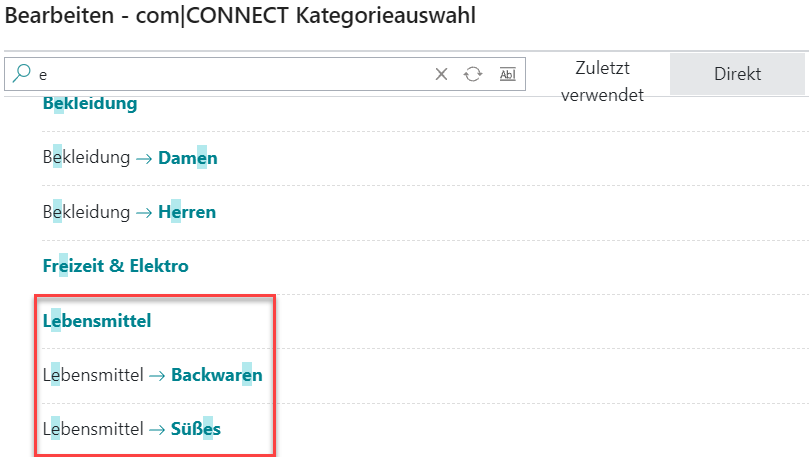
Example Direct: Only the lowest category level is searched. The subcategory Fisch is no longer in the result because only its parent category Lebensmittel contains an e.
Depending on the shop, com|CONNECT shows the available shop attribute sets after you select the shop category, for example for Magento:
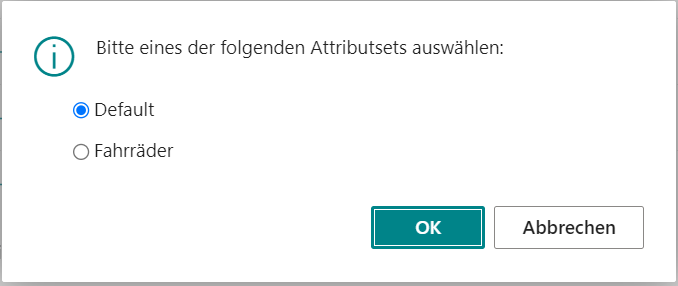
com|CONNECT uses the attribute set to load the related attributes. They're listed on the online item card under Attributes for the respective shop.
Result: The shop category is selected.

Step 4: Review the attributes
After the shop categories and shop attribute sets are selected and linked to the com|CONNECT category, you link the shop attributes to the com|CONNECT attributes. This also happens separately for each shop.
The automatic attribute linking supports you here. It creates links automatically based on earlier attribute set or attribute links of other items:
- First, it uses the history of the assigned com|CONNECT basic category.
- If no basic category is assigned, it uses the com|CONNECT basic attribute set.
- If that doesn't produce a match either, all existing historical attribute links are checked for matches and assigned.
Starting point: The com|CONNECT basic category Guest chairs and the com|CONNECT basic attribute set Chairs are linked to the Magento shop category Subcategory 1.
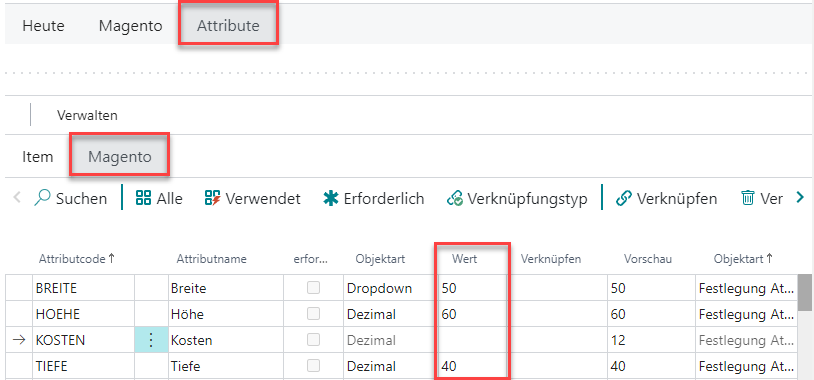
Select the Attributes tab.

Item is preselected and shows the com|CONNECT attributes. If there are several shops, you can enter values in the Value field under Item that apply to all shops.
Note
For a value maintained on the item, the shops only show the preview of the value, not the value itself. A missing value with an existing preview therefore indicates that the value comes from the item.
For shop-specific links or entries, select the tab of the respective shop.

Step 5: Link com|CONNECT attributes to shop attributes
There are two ways to create a link.
1:1 – link one com|CONNECT attribute to one shop attribute
In the Link field, choose the … button.

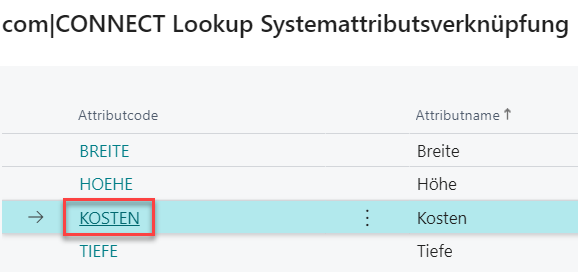
The com|CONNECT lookup for the system attribute link opens. Select the attribute to link to the shop attribute.
1:n – link several attributes in one step
In the attribute list, select a shop attribute and one or more com|CONNECT attributes.
Choose Link.
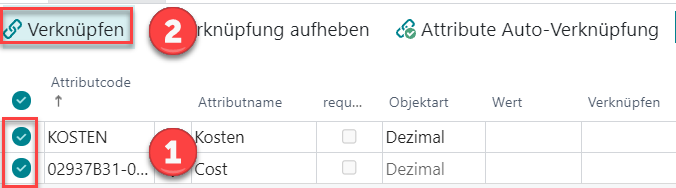
Result of both options:

The linking is now complete.