Attribute sets, attributes, and categories
Attribute sets, attributes, and categories are the shop-independent foundation for online items in com|CONNECT. You maintain them once in com|CONNECT and then link them to their counterparts in each shop.
Terms
Attribute set
An attribute set is a group of attributes. Attribute sets are created before the attributes themselves. The attributes are then linked to the attribute set.
Attributes
Every shop has a set of attributes. They fall roughly into two types:
- General attributes (for example description, product image): These attributes can be used for all items.
- Specific attributes (for example color, size): These attributes depend on the kind of product. A book needs different attributes than a TV.
Categories
A category classifies a product in the shop and lets you group similar products.
- Categories are usually organized as a tree.
- You can change the tree freely (delete, add, reorder).
- An item can belong to more than one category at the same time (for example Book and Special offer).
Manage attribute sets
Setup > com|CONNECT Assisted Setup > Attribute Set
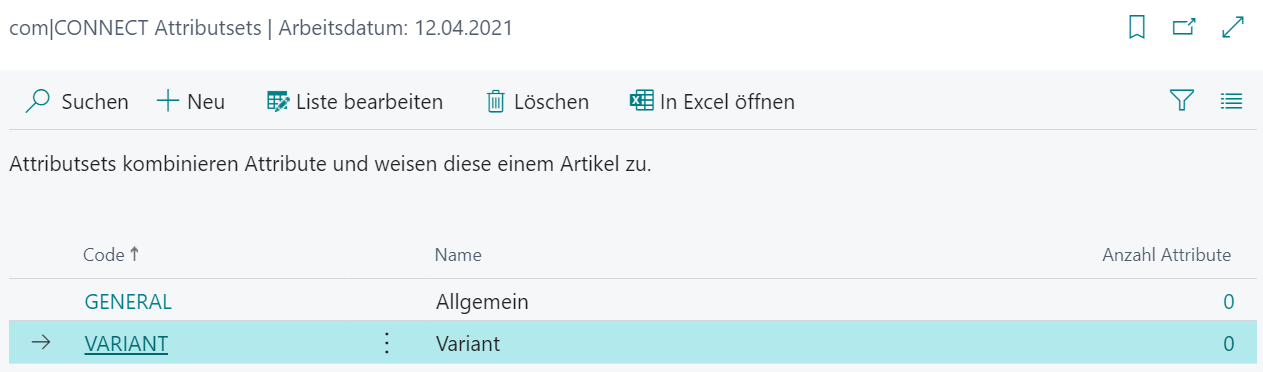
The list shows all attribute sets with the number of assigned attributes. Selecting the Code opens the com|CONNECT Attribute Set Card.
The attribute set card shows the attributes assigned to the attribute set.
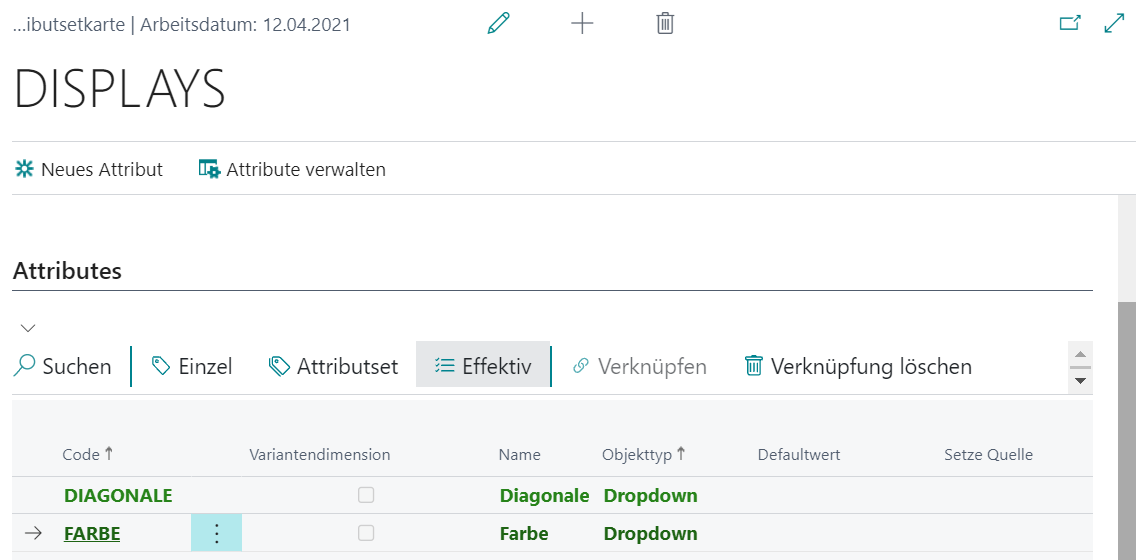
In addition to the standard actions, the attribute set card provides attribute actions such as New attribute, Manage Attributes, Link, Delete Link, and Copy.
Copy attribute sets
Linking an attribute set always includes all attributes of the set. Copying, in contrast, creates an independent copy that you can edit: attributes can be changed, removed, and added. This is useful for preparing larger restructurings without affecting the attribute sets and attributes in production.
Delete attribute sets
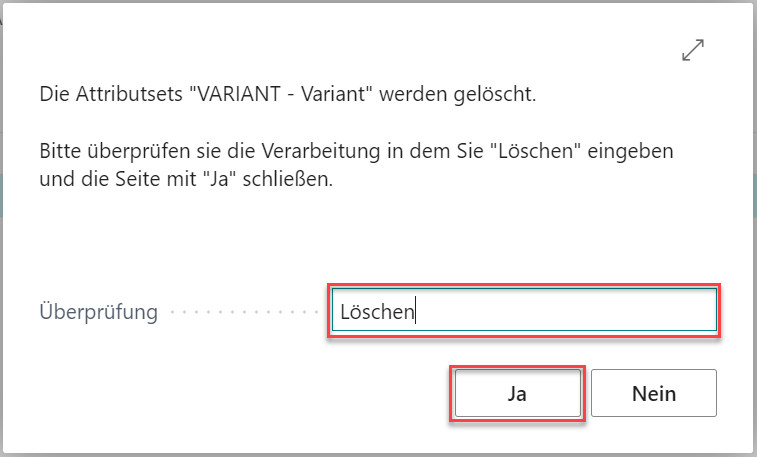
As long as no online item is assigned to an attribute set, you can remove it with the Delete action. In the confirmation dialog, enter the text Löschen in the Verification field and choose Yes.
Create attributes
Setup > com|CONNECT Assisted Setup > Attribute Set
Create an attribute set or select an existing one. Selecting the Code or the number of attributes opens the attribute set card.

The attribute set card shows, manages, and creates the assigned attributes.
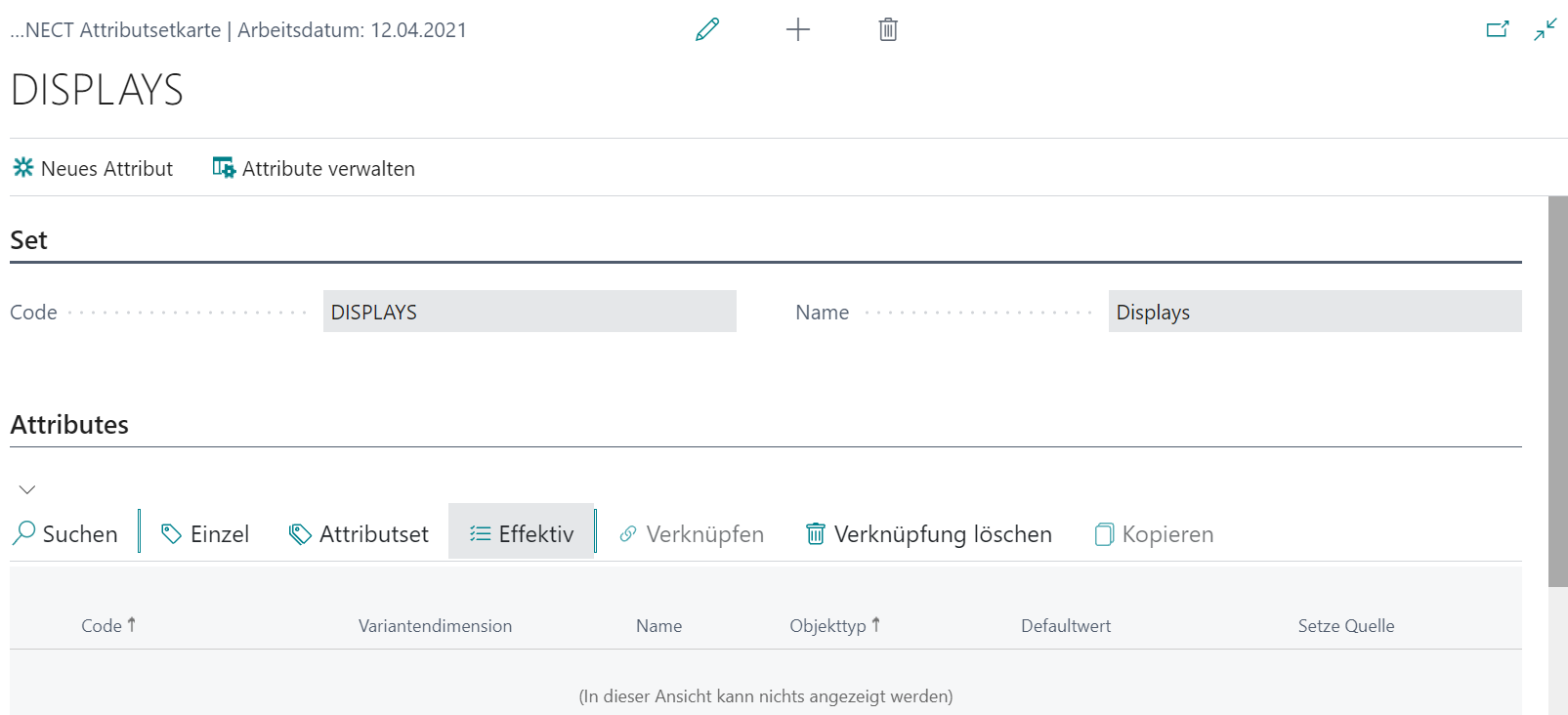
The New attribute action opens the com|CONNECT Attribute Card.
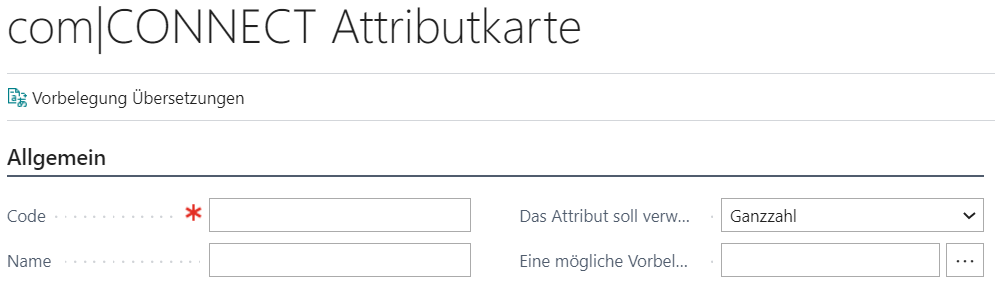
The Default Translations action opens the com|CONNECT translations for the attribute.
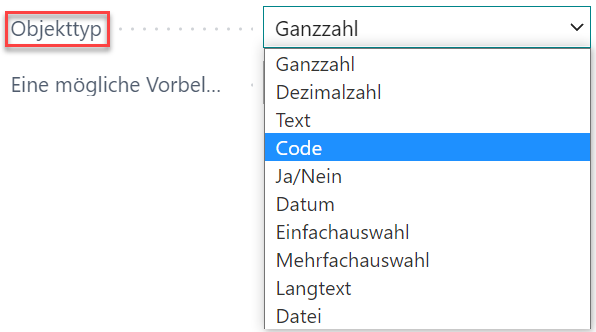
In the object type field, choose the data type of the attribute: Integer, Decimal, Text, Code, Yes/No, Date, Single selection, Multiple selection, Long text, or File.
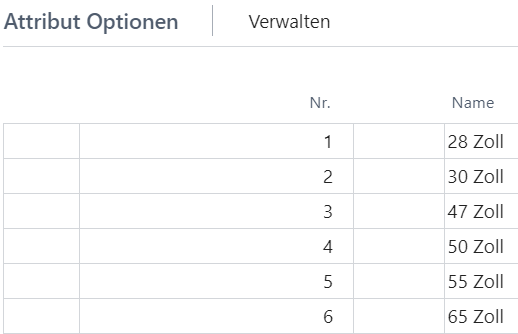
Depending on the selection, you can define further attribute options, for example the available choices for Single selection or Multiple selection. Make sure the attribute is compatible with the shop fields it will be linked to.
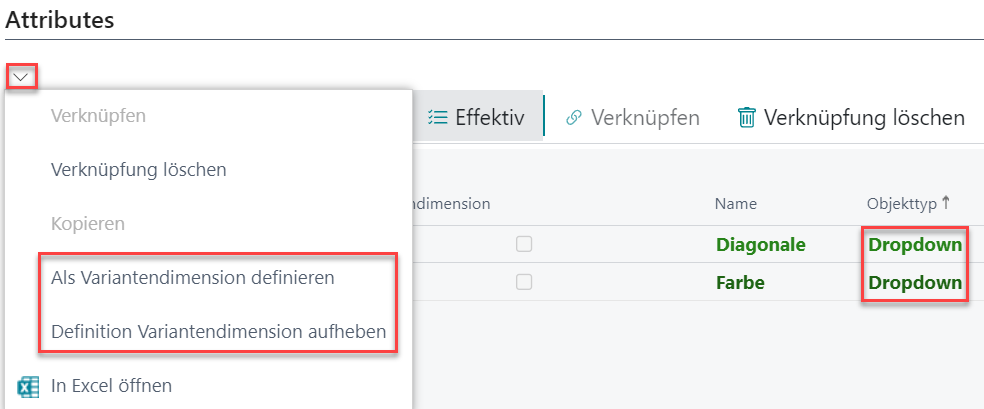
Attributes such as color or size can be set as the basis for variants of configurable online items with the Set Variant Dimension action on the attribute set card. Unset Variant Dimension reverts this.
Categories
Categories are maintained as a tree and assigned, for example, in the Basic Category ID field on the com|CONNECT Online Item Card.
Important
Never delete the Default Category.
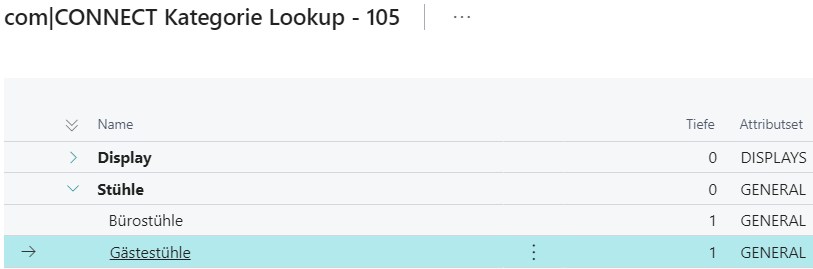
Assign attribute sets to categories
- If you move a category without an attribute set one level down, it inherits the attribute set of the parent category.
- If you create and organize the categories without attribute sets first and assign the attribute sets afterward, child categories inherit the attribute set of their parent category.