Online items
An online item is the shop-specific representation of one or more local Business Central items. It contains the categories, attributes, and media that are transferred to the sales channels.
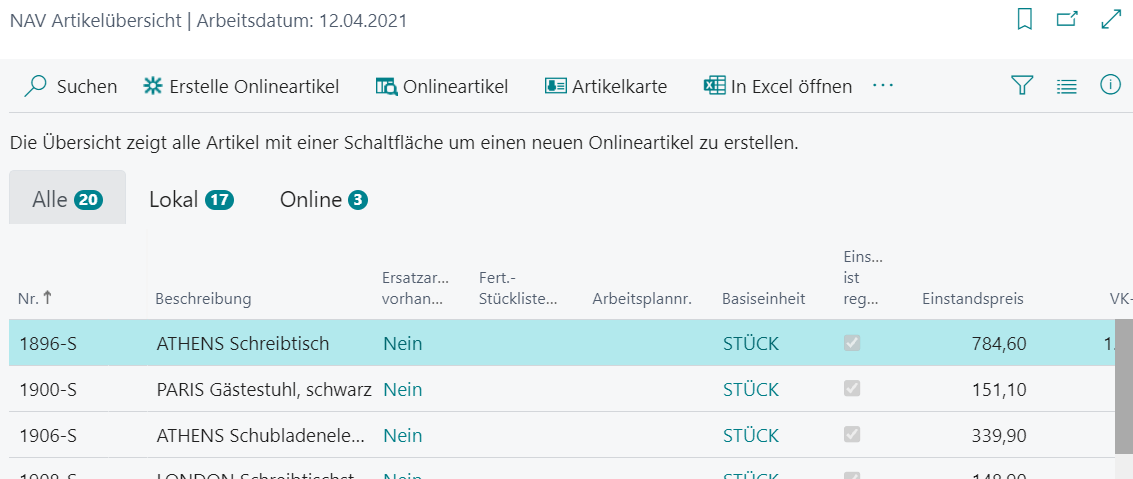
NAV Item List
Items > Items
The NAV Item List shows both local items and items that are already defined as online items. Use the All, Local, and Online filters to narrow down the list.
- Create Online Items opens the com|CONNECT Online Item Creation Wizard. The data of the selected local items is copied and, when you finish, provided to the selected sales channels for transfer. For more information, see Create online items.
- Online Items opens the list of existing online items with the features for managing and publishing them.
- Item Card opens the Business Central item card of the local item.
Types of online items
Items > Online Items
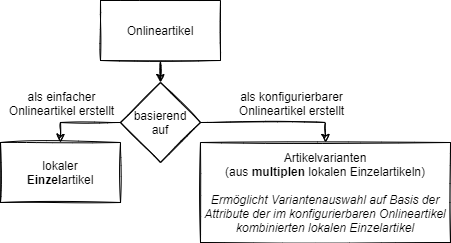
Simple online items
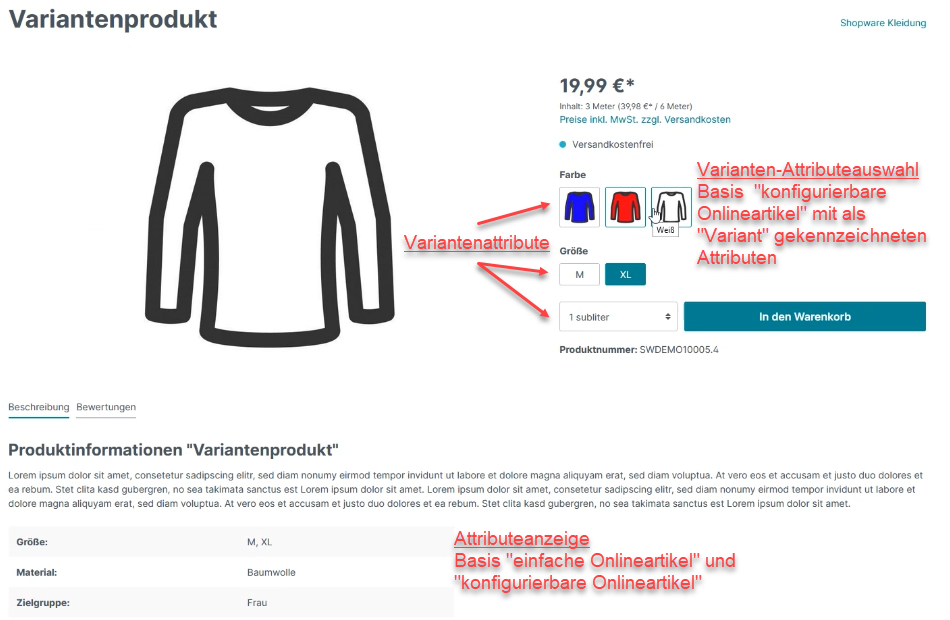
Simple online items are items without variant selection. The attributes are only displayed in the shop. During checkout, customers can't choose between, for example, different colors or sizes.
Configurable online items
Configurable online items are items with variant selection. To define an online item as configurable, turn on Create as configurable online item in the online item creation wizard. To do so, select several local items in the NAV Item List first. They're combined into one online item and offered as variants in the shop.
Actions on the online item list
In addition to the standard actions, area-specific actions are available. Which actions are available depends on the shop and on the item status (new, already in the shop, deactivated).
Category and attribute linking
The categories and attributes of the shops must be linked to their counterparts in com|CONNECT. For the procedure, see Link shop categories and shop attributes.
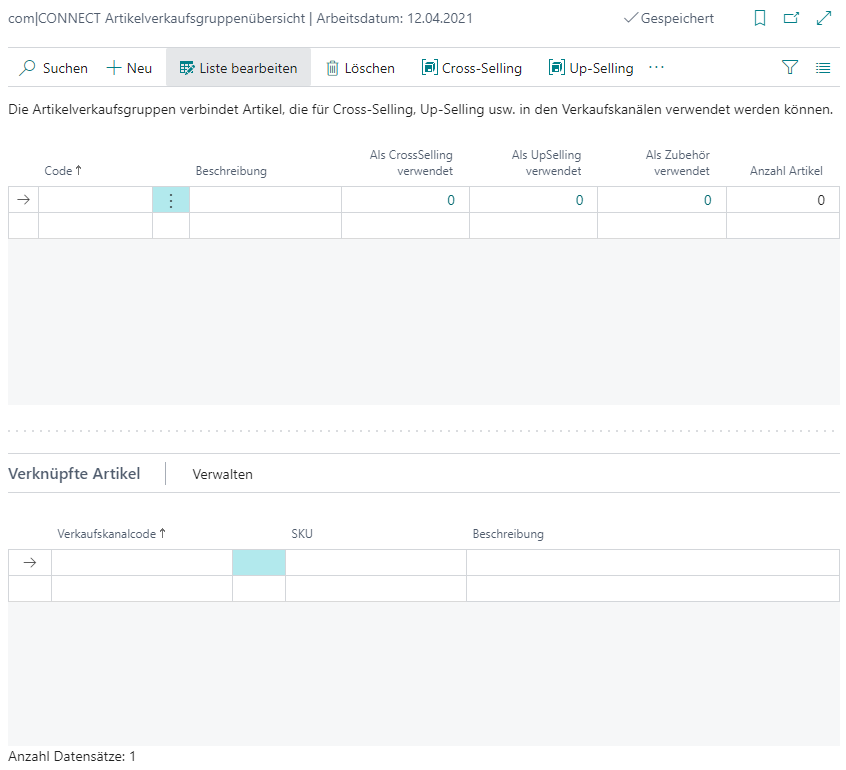
Item sales groups
Items > Item Sales Groups
In the com|CONNECT Item Sales Group List, you link an item to other items for:
- Cross Selling: Shows equivalent items for an item.
- Up Selling: Shows higher-value items for an item.
- Related: Accessories for an item.
The sales channels can then use these groups. In the CrossSelling Links part at the bottom, use Manage to maintain the items of the selected group.